How to hide Recommendations in Windows 11 Start Menu
Hiding the Recommendations section in Windows 11 Start Menu
Lately I was tasked to hide the “Recommendations” section in the Windows 11 Start Menu. After having a look into the documentation, this was no problem at all :)
You can find the documentation here: https://learn.microsoft.com/en-us/windows/configuration/start/policy-settings
The Recommendations section
If you are not keen with the section, this is the one I am talking about:
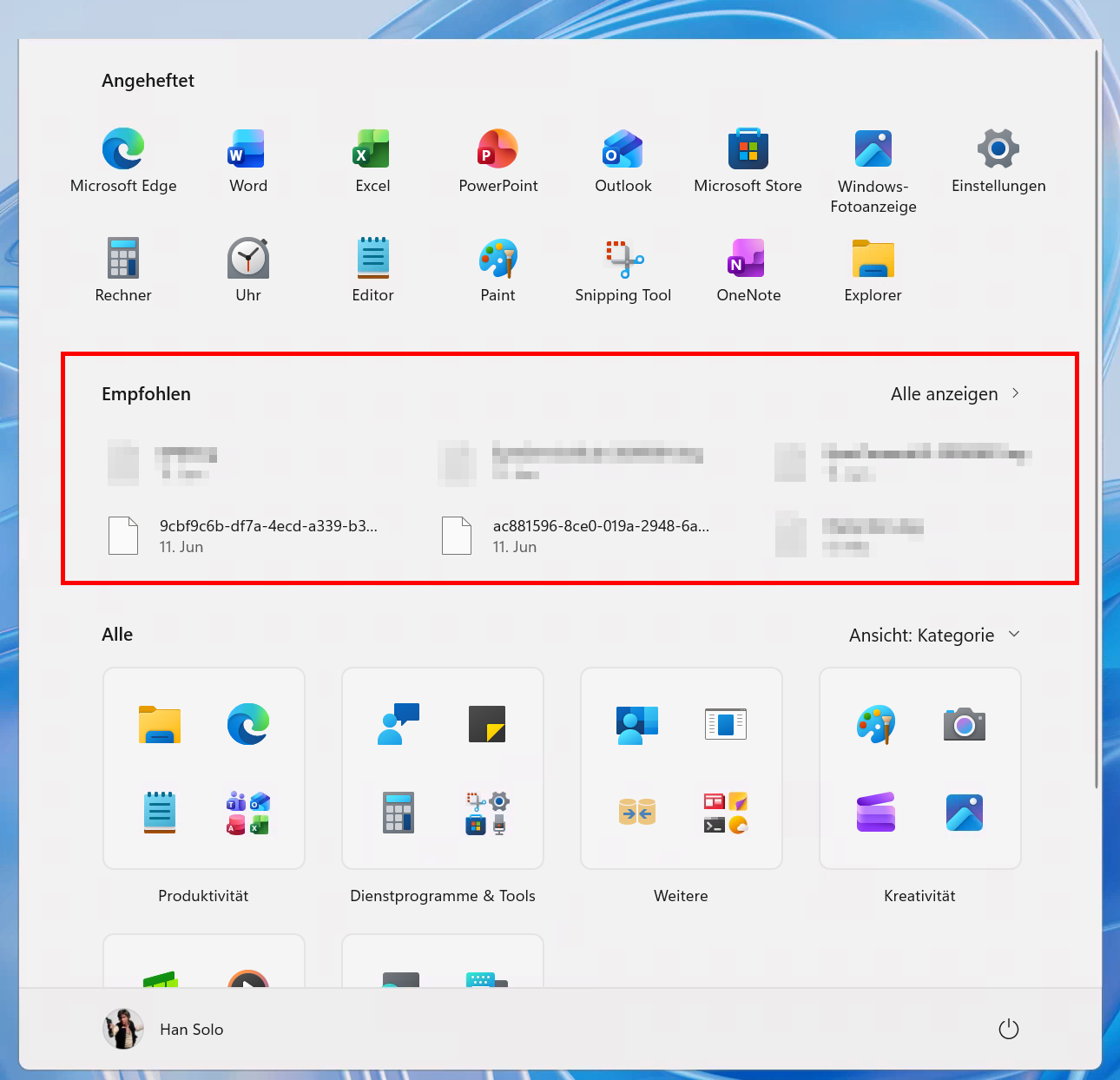
You can hide this section on two ways.
Intune
In Intune, this can be done with a CSP:
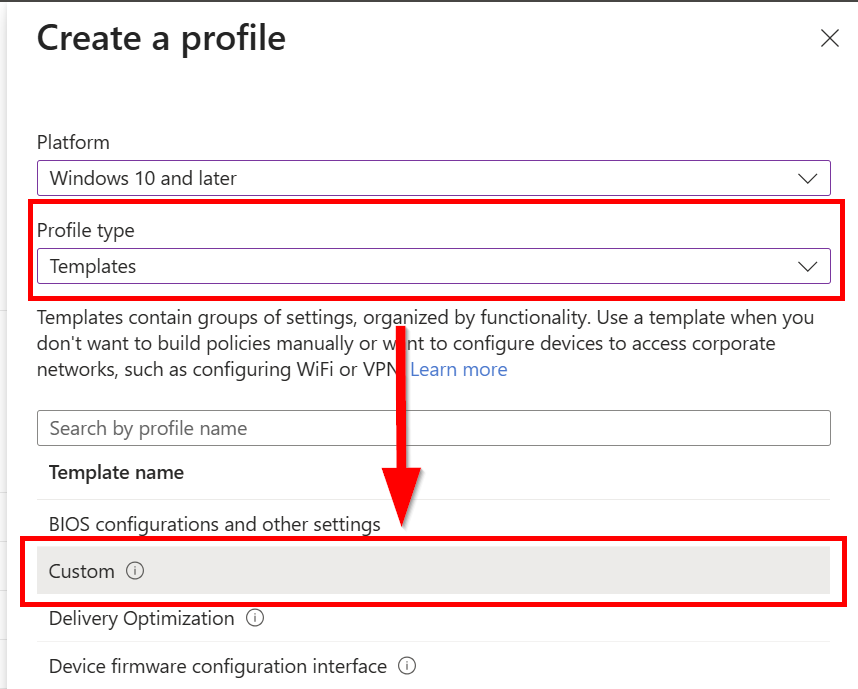
Create a new policy for Windows 10 and later, choose Templates and Custom
After naming your policy accordingly, Add a new CSP
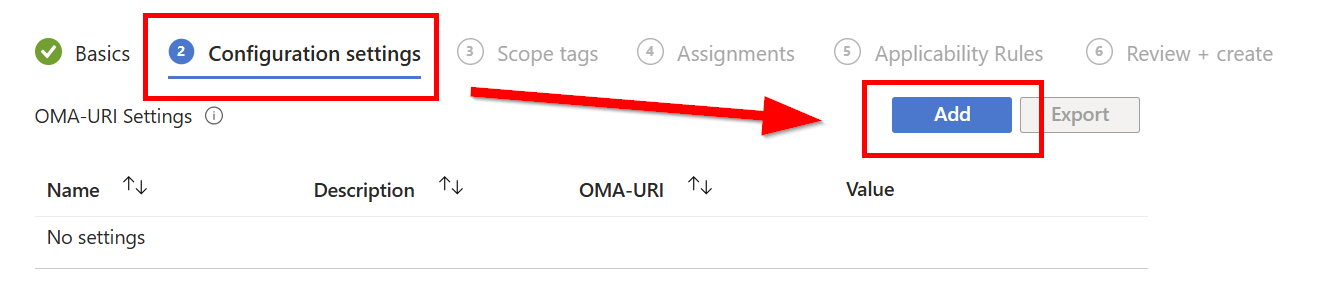
Use the following settings
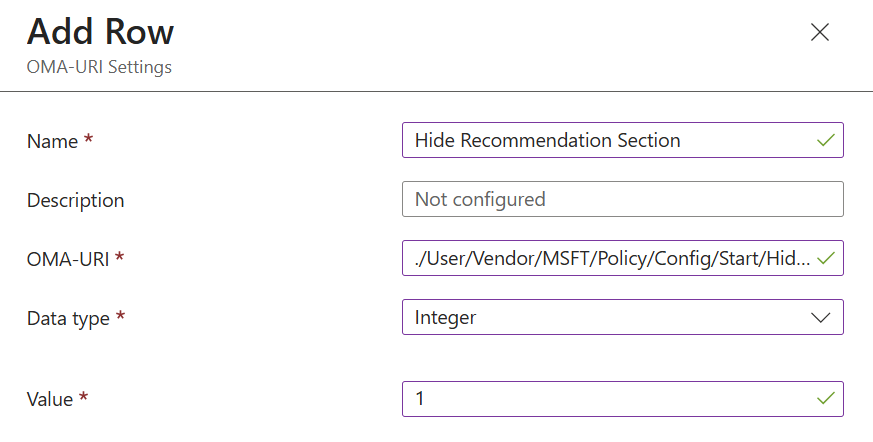
| Name | Choose any name you want |
| Description | Choose a description you want |
| OMA-URI | ./User/Vendor/MSFT/Policy/Config/Start/HideRecommendedSection |
| Data type | Integer |
| Value | 1 |
You can also use
./Device/Vendor/MSFT/Policy/Config/Start/HideRecommendedSection make sure you set your assignment accordingly
Choose your Scope Tags, Assignments as you wish.
GPO
You can also set this via GPO, you can find them under (both device or user assignments)
- Computer Configuration > Administrative Templates > Start Menu and Taskbar
- User Configuration > Administrative Templates > Start Menu and Taskbar > Remove Recommended section from Start Menu
Outcome
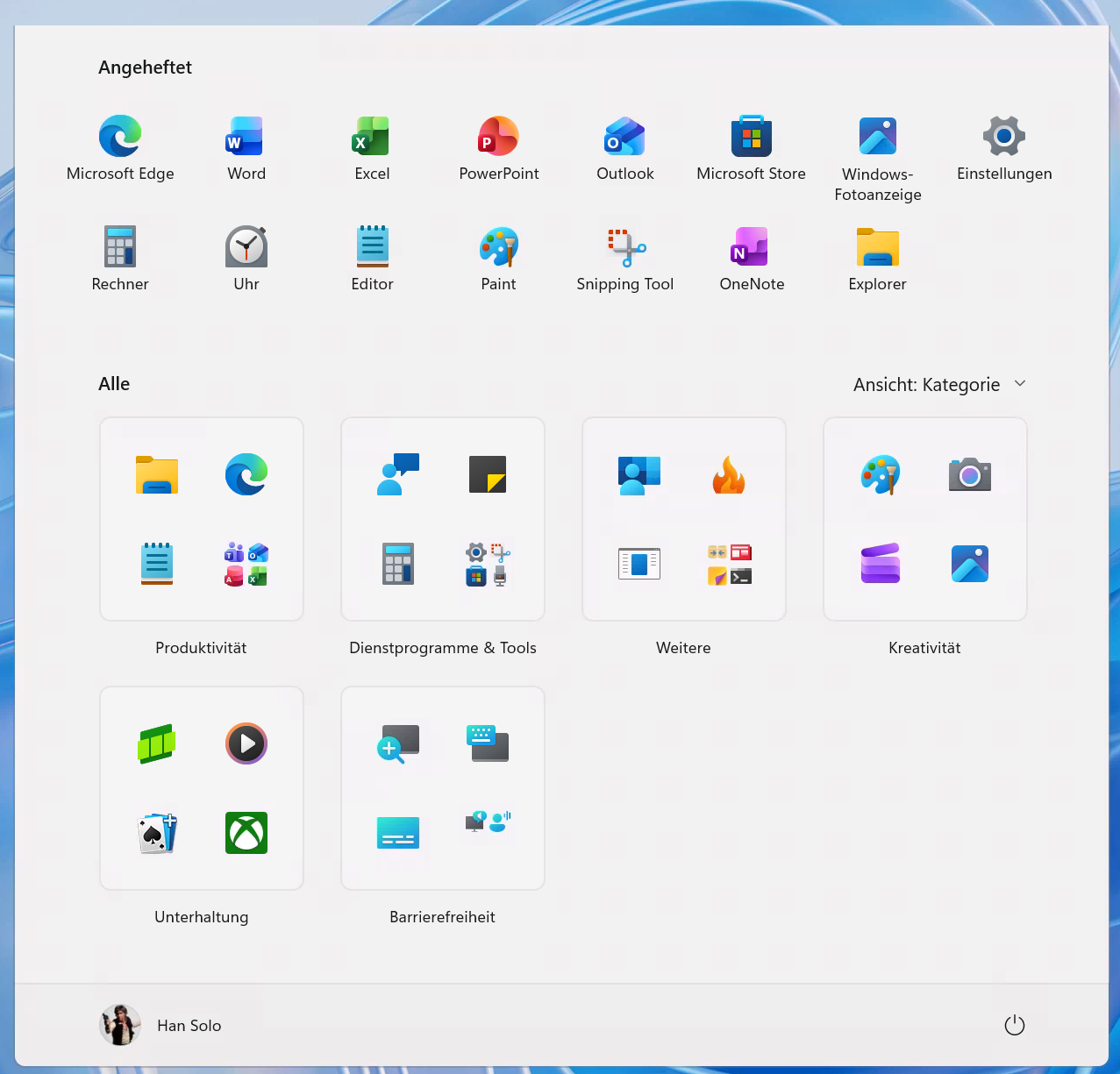
Your Start Menu should now look like this